Turn down your phone without missing the people who need you
Start with urgent exceptions and group the rest of the alerts by what you can do about them.
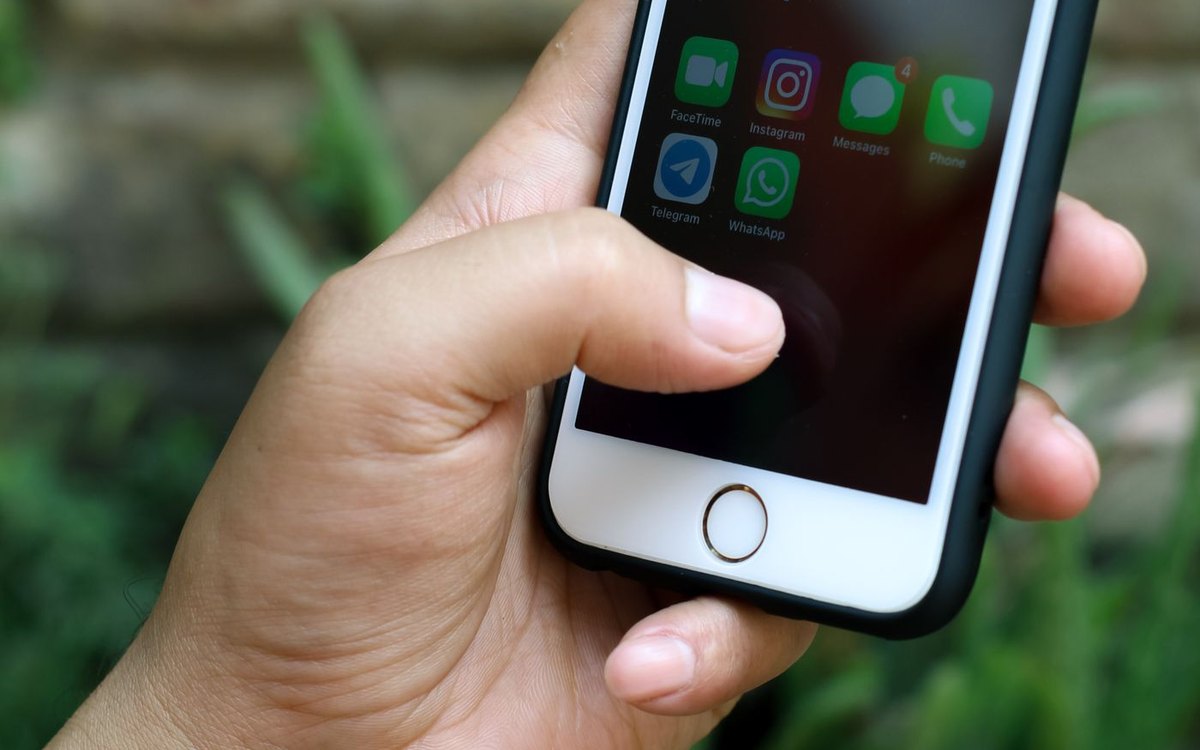
On a busy day a phone can interrupt every few minutes and still make an important call hard to notice. Begin by naming the people and services that deserve an immediate interruption. Then identify what a short delay would cost for each one. A message that can wait two hours belongs in a different group from the call that changes who collects a child.
Make the categories in terms of the action they prompt. Some alerts are invitations to check later. Some confirm something that has already happened. The third kind asks you to respond soon because a person or task is waiting. An application can deliver all three. An email program can report a newsletter at breakfast and an urgent change to a handoff at the same volume. The most useful changes make the sound or vibration correspond to the urgency of the request.
Follow the interruptions for one ordinary day
Leave the existing setup in place long enough to discover which alerts disturb you and where they originate. Write down the apps that called for attention during a concentration task and which messages you actually needed to open. Check whether a watch and laptop duplicated the same sound. Look through the notification center at the end of the day. The log can show whether a visible badge, a banner and an audible interruption are arriving for the same event. That distinction will help when you open a settings panel with more choices than an on-off switch.
Set aside special cases. A family member’s call after school may need to reach you even when a work mode is active. A parcel notification might be important on days when someone must be home to sign. Some regions deliver emergency notifications through separate system features. Review official device and local guidance before altering those controls. The ordinary notification list can be much quieter while safety-related alerts and deliberate exceptions remain available.
Adjust categories before silencing entire apps
Many messaging and shopping apps combine several kinds of alerts. Check the app and operating system for delivery controls. Disable routine promotions first and retain things such as delivery updates when useful. Check whether your phone can use a focused mode while allowing selected people, repeated calls or chosen applications to reach you.
Check inside the application first for choices that describe the real event. Product updates and order status may be listed separately there even when the operating system presents one overall permission. The platform may also expose notification categories and allow you to choose which kinds show on a lock screen. When an app lacks useful filters, see whether its messages already arrive by another true-to-purpose route, such as a delivery email. Keeping two copies of the same notification rarely helps once both show on the phone and computer.
Try a silent appearance for information you want to see during a break. A category that appears in the notification center without sound can be a good place for messages that are valid but rarely time-sensitive. A scheduled summary can do a similar job on systems that offer one. Read the summary after experimenting for a few days. Decide whether the grouping makes alerts easier to process or leaves you paging through material you would happily have missed. For important applications, test both the ordinary view and the lock-screen experience before relying on the setting.
Keep focus modes simple and recognizable
Two named modes can be enough. A work mode can protect long tasks while allowing calls from selected contacts. A sleep mode can have a shorter list and a predictable end time. Before using an automatic trigger, try switching the mode manually. A location rule might activate while you are working from the same building without intending to be in focus mode. A time-based trigger might run during a changed shift. If you set an automatic rule, make sure you can see which one is active and stop it quickly.
Review exceptions for people with multiple numbers or several messaging services. Adding a contact to an allowed list may affect incoming phone calls and some apps differently. An unknown office number that sometimes reaches you may not be tied to the contact you expected. Work through the expected case using someone’s existing contact channels. If repeated-call behavior is enabled, check what your device treats as a repeat. Tell the person who should be able to reach you what to try, so an exception becomes part of a shared plan instead of something only one phone remembers.
Test with someone who knows the plan
Ask for two dummy messages and one call while the focus mode is active. Repeat on a paired watch or tablet if alerts travel there. In the evening, check where the quiet notifications can be read again. A useful setup should reduce noise while giving important events an unmistakable path through. Update the exceptions when responsibilities change instead of adding an alert for every possible event.
Test with the phone locked and with it open. The devices you are wearing and the screen you were using may affect which equipment alerts you. Check a connected headset if you work with one on. Ask the person sending the test what they saw on their side. Some systems can show that notifications are silenced, and the experience can vary with the app and sharing settings. An effort to create a quieter phone should preserve a way to coordinate without making someone try every communication app in sequence.
Design quiet for people who share a room
On a bedside table, a bright screen can interrupt someone even when the phone makes no sound. Review lock-screen previews and whether the display lights up for routine alerts. Consider which message details are visible from across a desk or during a presentation. Keep the private details inside the opened app where supported. If you help maintain someone else’s phone, ask which alerts they depend on before switching things off. The small alerts that look unimportant to another person can be the owner’s reliable reminder that an appointment is real.
Do the same exercise on the laptop if notifications follow you there. A browser can introduce alerts independently from the phone application. Review which sites have permission and revoke access for sites you no longer expect to hear from. During a presentation, check which display receives banners and which focus settings apply on that computer. Once the equipment behaves consistently, write down three channels: the immediate route for real urgency, a time to check routine messages and the place to find the next reminder. The relationship between those channels matters more than the total number of alerts you removed.
Revisit the plan once new routines settle
After a week, check whether you have started compensating by opening every app manually. If so, add back one signal for the task you were trying to preserve. For an app with one indispensable event, look for a more specific alert category or a separate calendar reminder you can control. Keep the configurations you can explain and adjust after a new job, device or schedule. A quieter week is useful evidence, especially if a test caller reaches you on the first attempt. A collection of hidden exceptions you cannot remember is a sign to simplify the names and reduce the number of modes.
Compare days with different kinds of activity. The configuration you use on a quiet afternoon at home does not have to be the same as the one you need while traveling or covering a colleague. Write down how to turn off automatic modes when plans change and return to the usual schedule afterward. If two devices synchronize their settings, check whether the change followed you on purpose. An interruption policy gets easier to maintain when it has one familiar place to look and an easy way to pause it.
Keep a separate route for predictable deadlines
A notification set by someone else can change when an app updates or a service changes its delivery system. For an important recurring task, set a personal reminder in the tool you already trust and verify it from the same device. Keep the task name clear enough to act on from the alert. “Review the booking before Friday” includes a reason and a time. A badge bearing the name of an application may still require three minutes of searching to work out what happened. Save final confirmations with the task rather than leaving them in a temporary alert tray.
If an alert arrives after it would have been useful, find out whether the sender, the application or the device delayed it. Check the timestamp on the originating message. Compare the phone with a system that had the same account open. Background settings and connection availability can affect the route to the device. Look for a pattern before changing battery or connectivity settings. A service having a short outage once may be less significant than an important category that never appears outside Wi-Fi.
Leave yourself a way to hear new kinds of essential events. During the first week of a new activity, keep its primary channel evident and check whether its reminders arrive as expected. A controlled trial gives the app time to demonstrate the messages it sends. You can then quiet casual updates without guessing which new category contains the single reminder you joined for.