When mesh Wi-Fi benefits from a wire
Compare wireless hops with wired backhaul before placing a second access point.
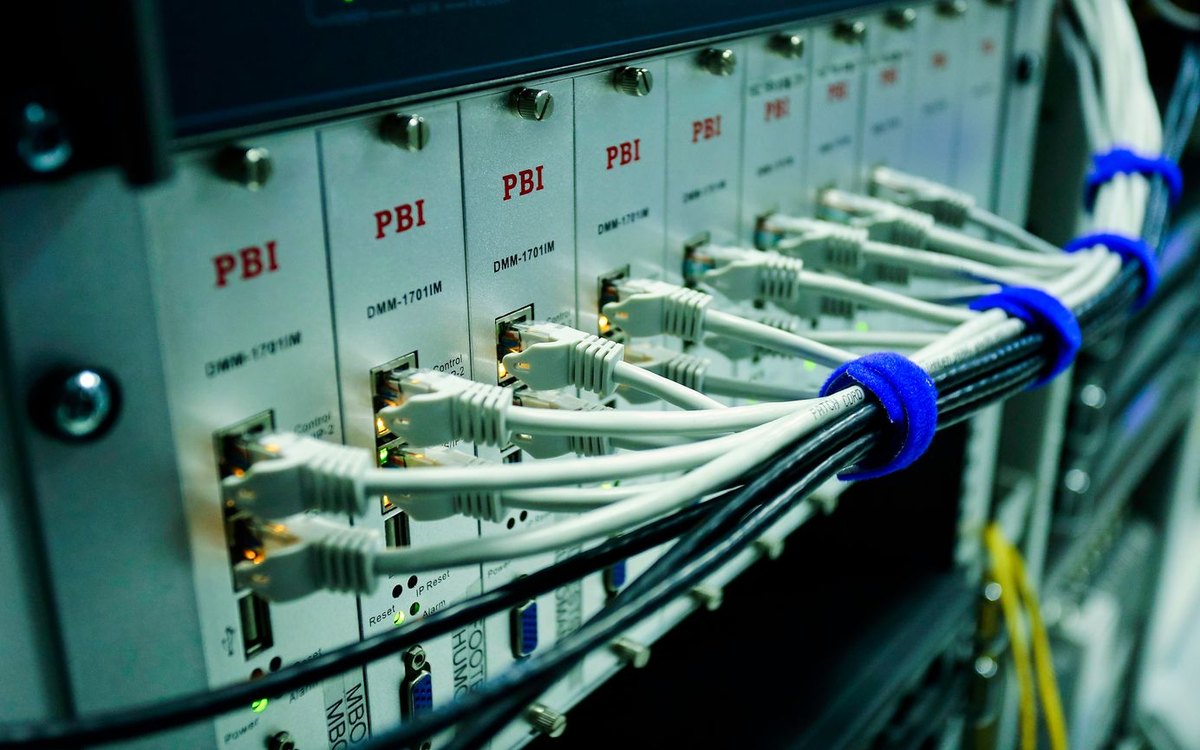
Each mesh unit needs a usable route to the rest of the home. A wireless node placed at the far end of a difficult floor plan may serve nearby devices well while forwarding their traffic through a weak path. This is why a phone can show strong signal beside a mesh node and still have an unstable video call.
Start in the middle
Try a temporary node placement between the main router and the room you want to reach. Test stationary use first and then walk between rooms while a call is running. Client devices decide when to roam, so two phones can behave differently on the same network. Check the mesh application for the quality of the link between nodes and note whether the test changed the connection or simply the signal icon.
Use existing Ethernet carefully
If you have a suitable cable run and compatible equipment, wired backhaul can make an upstairs or distant access point less dependent on radio conditions. Consult the hardware’s supported topology and connect one node before reorganizing switches. Check that wired and wireless clients still reach the local services they should. Compare the result at a busy time. A modest wired change is often most valuable because it reduces interruptions that an average speed number hides.
Separate the two links a satellite uses
Imagine standing next to a mesh unit in a converted attic. The phone can reach the satellite easily. The satellite still needs to move that phone’s data toward the rest of the network. That second path is the backhaul. In a wireless arrangement its quality may depend on walls, floors, distant transmitters and how the equipment assigns radio capacity. In a wired arrangement a suitable Ethernet link can take that part of the trip off the air. The phone keeps using Wi-Fi for its own connection to the satellite. A wired backhaul can improve one link without reaching a phone that is behind another difficult wall.
Look at the administration app for the access point currently serving the device and the type or quality of the link from that point upstream, if the system reports them. Write those values next to the result of a real activity. For example, walk from the hall to a desk, then stay there for a five-minute call. If the phone shows a strong signal beside the satellite but the call remains choppy, see whether the app reports a poor link between the units. Then check the internet path and other devices before deciding that the backhaul is the only cause. You want a new arrangement to explain a real improvement in the room.
Decide how much movement the network needs to handle
For a desktop or a television in a fixed location, a direct Ethernet connection can solve the immediate problem if a cable can reach it. A mesh node is more likely to earn its place where several wireless devices or people depend on the same area. Think about what happens along the path between rooms. A phone on a call may stay connected to an access point until its own conditions for changing are met. Access points and protocols can assist, but the client still has a role in choosing when to roam. Apple’s deployment guide documents specific behavior for its devices and illustrates why two clients can make different decisions in the same space.
Set up a stationary test and a moving test. During the stationary test, watch a programme or make a short call from the exact chair where the difficulty occurs. During the moving test, walk at your normal pace from one working area to another and have someone say when speech drops. Repeat the route in both directions. If the stationary task is healthy and only movement causes trouble, a wire can improve the inter-node path while the roaming issue remains. Check the node placements and the clients before adding another radio or raising the number of units. Phones and laptops may take different paths between the same two rooms.
Look for an existing cable path worth using
Start with the equipment you already have. If a room has an Ethernet wall socket, find out where its cable terminates and whether the other end is connected. A socket in the wall does not necessarily reach the router or have an active link. Check the building or installation information, then use a known working short cable and a supported device to confirm the route. If a cable run belongs to a building or landlord, get the appropriate permission before changing it. A temporary cable for a supervised test can demonstrate the benefit before you commit to any permanent installation. Place it so nobody needs to walk on it or step over it.
Check the link speeds supported by the node, the equipment upstream and any switches in between. An old cable or port may negotiate a lower speed than expected. That can still be enough for a stable call, while limiting large local transfers or a fast internet plan. Read what the system reports, and test the job that actually benefits from the change. Where the connection serves a fixed device and a wireless point, check how many ports are available and what each can do. A small compatible switch may be enough if the system supports that layout. You can avoid buying several new parts at once by testing the path and the first node alone.
Follow the exact topology for the model and mode
An Ethernet socket is a clue to capability, and the manual is the way to confirm it. Some satellites have no wired option. Others accept Ethernet backhaul only for certain ports, firmware or operating modes. Google’s support guide distinguishes the Nest devices that can use Ethernet from satellite models lacking ports. TP-Link’s instructions use different wiring diagrams for Deco router mode and access point mode. Look up your entire set of models, including switches and any older units, and match the diagram to the current operating mode. A diagram for the visually similar unit in a newer kit may leave an important difference unexplained.
Plan how the link returns to the unit that manages the network. In one documented router-mode layout, a satellite connects to the local side of the primary mesh router, directly or through a supported downstream switch. Another vendor or mode may allow a different structure. Avoid adding two wired paths between the same pieces of equipment unless the manufacturer explicitly supports that arrangement. A loop can disrupt the rest of the network. Follow any order the manufacturer specifies for initial setup, adding cables and checking status. If the network becomes unstable, return to the last stable layout instead of changing several additional settings while you are still diagnosing the first one.
Compare wireless and wired with the satellite in the same place
Try to isolate the cable as the changed condition. Take a result at the current satellite location at a normal time of use, connect one supported cable and confirm that the app reports the wired link. Test with the same laptop or phone and the same activity from the same spot. If the satellite must move during installation, record the location change and collect a result with the old link as close to that position as you can. A useful finding might be that a call continues while another person streams video, even though the highest result in a brief speed test changes very little.
The next question is whether the improvement reaches the applications you care about. Use a file transfer within your own network if local storage speed matters, then use a normal external service if internet performance matters. The first uses the local link between devices and the second adds the provider and remote service. Stop the test when you have enough evidence to compare the arrangements, then check any printer, casting target or guest network that the household uses. If those functions matter daily, keep one result for each. A stable wired link is valuable alongside the ordinary cooperation of devices that share the rest of the network.
Leave the setup easy to restore
Label the cable and record the ports it connects. Keep the units’ model names, the current software version and the operating mode in the same note. Save the manufacturer’s diagram for the arrangement that worked. If someone rearranges a desk or replaces a switch, the note will tell them why the cable mattered and whether a new piece must support the same path. Give any major move or firmware change one familiar test afterward. A successful connection light tells you that a link is up. The call, stream or file copy tells you that the people using it still get the result they need.
If wired backhaul brings little benefit in the home, keep the observations. Moving the wireless node to a better middle point may have been enough. A single cable to a fixed device may be the more useful permanent change. If the improvement was substantial, leave the layout in place long enough for the busy hours to act as another test. The most convincing comparison names which room, client and task improved, and whether moving between rooms still needs attention. That gives you a way to decide what is worth changing when a new device arrives.